Getting Started with Veo 3: A Complete Guide
8 min read
Learn the fundamentals of Google DeepMind's latest AI video model and how to craft effective prompts for stunning results.
Learn the fundamentals of Google DeepMind's latest AI video model and how to craft effective prompts for stunning results.
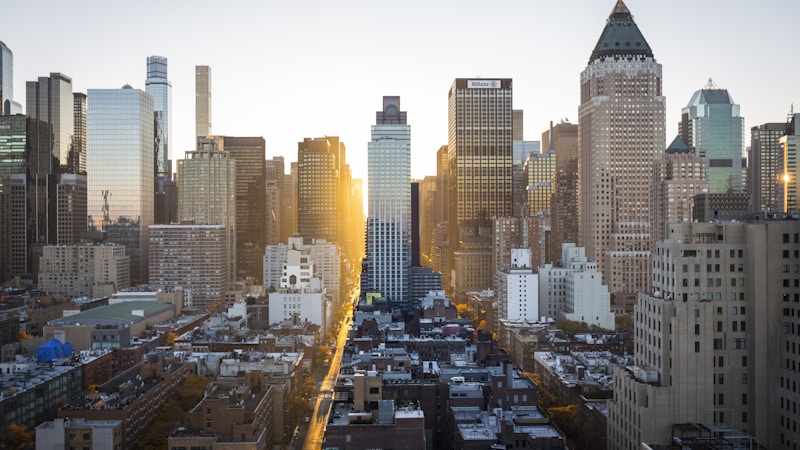
Veo 3 represents a significant leap forward in AI video generation. As Google DeepMind's most advanced model, it produces high-definition, physically realistic video clips up to 30 seconds long from text prompts — with the unique ability to natively generate synchronized audio.
This guide will walk you through everything you need to know to get started with Veo 3, from understanding its capabilities to crafting effective prompts that produce stunning results.
Understanding Veo 3's Capabilities
Before diving into prompt creation, it's important to understand what makes Veo 3 different from previous AI video models.
Native Audio Generation
Veo 3 is the first AI video model to generate synchronized audio alongside the video. This includes dialogue, sound effects, ambient environmental sound, and music — all temporally aligned with on-screen action.
Extended Duration
Generate clips up to 30 seconds in a single generation — significantly longer than competing models limited to 4-8 seconds. This enables proper storytelling with pacing and character development.
Cinematic Quality
Trained on professional film footage, Veo 3 understands camera movements, lens optics, depth of field, and lighting in the same language as human cinematographers.
The Anatomy of a Great Prompt
Effective Veo 3 prompts describe four key layers.
| Layer | Description | Example |
|---|---|---|
| Scene Description | Environment, action, time of day, emotional tone | A rain-soaked Tokyo alley at 2am |
| Subject Detail | Who or what is in frame | A young woman in a red coat |
| Cinematic Parameters | Camera, style, lighting, mood | Tracking shot, neon lighting, tense mood |
| Audio Description | Sound that reinforces the mood | Distant traffic, rain on pavement |
Scene Description
Write at least 2-3 sentences describing the environment, action, time of day, and emotional tone. Be specific — "a rain-soaked Tokyo alley at 2am" rather than "a street at night."
Subject Detail
Describe who or what is in frame. For human subjects, include age, clothing, position, and expression. For landscapes, describe the main features.
Cinematic Parameters
Choose camera movement, visual style, lighting conditions, and mood. These elements work together to create the overall aesthetic.
Audio Description
Describe ambient sounds, specific sound effects, or dialogue. Audio should reinforce the visual mood.
Example Complete Prompt:

A young woman in a red coat walks alone through a rain-soaked Tokyo alley at 2am, neon signs reflecting on wet pavement, steam rising from vents. Cinematic style, tracking shot following her, neon rain lighting, mysterious mood. Audio: distant city traffic, rain on pavement, footsteps echoing, soft jazz from a nearby bar.
Common Mistakes to Avoid
Beginners often make these mistakes when starting with Veo 3.
The difference between a good prompt and a great prompt is specificity. The more details you provide, the better Veo 3 can understand your vision.
— AI Video Expert
Vague descriptions: Terms like "beautiful" or "cool" don't give the model specific visual targets.
Overloading the prompt: Too many competing directions can confuse the model.
Ignoring audio: Skipping audio descriptions means missing half the immersive experience.
Contradictory elements: Don't combine elements that conflict logically.
Next Steps
Now that you understand the fundamentals, it's time to start experimenting. Use our prompt generator to structure your prompts effectively, and don't be afraid to iterate and refine.
Help others learn about Veo 3
Explore how different lighting conditions affect Veo 3 output and learn to use golden hour, neon, and studio lighting effectively.
TechniqueFrom tracking shots to aerial views, discover how camera movement choices dramatically impact the mood and storytelling of your AI videos.
Apply what you've learned and start creating professional AI video prompts with our generator.
Try the Generator